

Create an Account
To register, you only need an email. Learn how to sign in with a password or a Telegram QR code, and what to do if you forget your password.
Registration
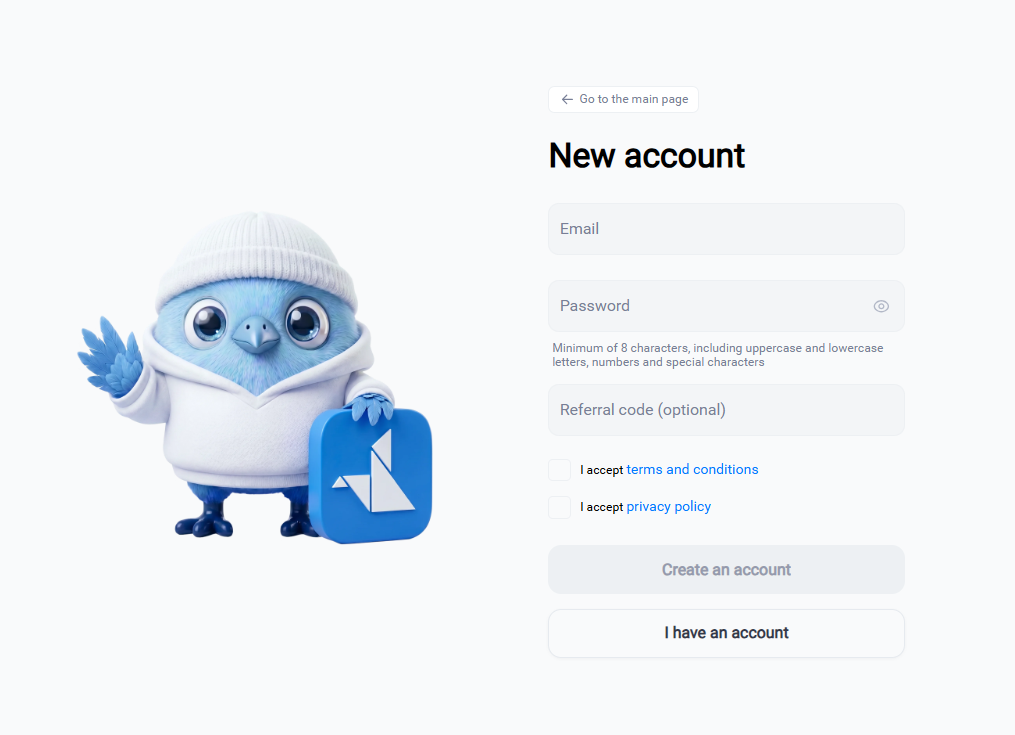
- Open the registration page and enter your email address.
- Create a password or use a password generator. Requirements: minimum 8 characters, uppercase and lowercase letters, numbers, and special characters such as
!,@,#,$, or%. - If you are invited, enter the referral code. This field is optional (for more details, see the article “Referral Program”).
- Accept the Terms and Conditions and the Privacy Policy.
- Click "Registration".
After registration, you will receive an email with a confirmation link. The link is valid 24 hours - if you don’t have time, request a new one.
- Open the email from ABCEX and click “Activate Account”.
- You will be taken to the login page - log in with your email and password.
Login by email and password
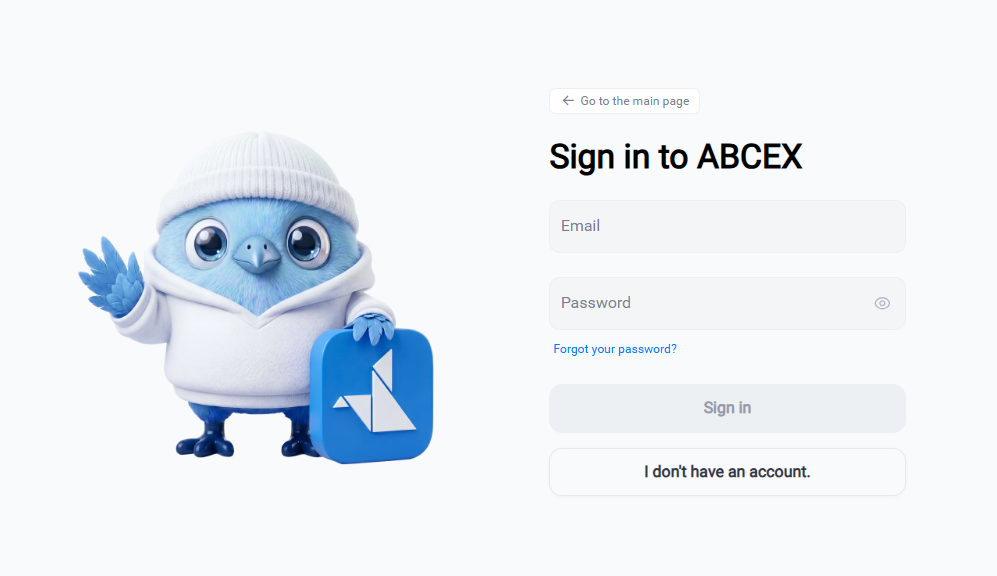
- Open the login page and enter your email and password.
- If two-factor authentication is enabled, enter the 6-digit code (see the article “Account Security (2FA)”).
- Done - the Exchange page will open.
Each time you sign in, you receive an email notification. If Telegram is linked, you receive the notification there as well. If you receive a sign-in notification you do not recognize, change your password immediately and contact support.
Login using QR code via Telegram Soon
Instead of an email and password, you can sign in using a QR code through the ABCEX Telegram mini app. It is faster because you do not need to enter a password or 2FA code.
- On the login page, select the "QR Code" tab.
- Open the ABCEX mini app in Telegram from your phone or with the Open App button.
- In the “Assets” tab, open the scanner and point the camera at the QR code from the screen.
- The widget will ask you to “Sign in on another device” with IP Address and Device. Check them - this should be the computer you are logging in from.
- Check the box and click “Authorize”.
Authorization gives full access to the account. If the login request appears on its own or you are asked to confirm it by a “support employee,” a friend, or anyone else, click “Decline.” ABCEX employees never ask for login confirmation.
The QR code is valid for 15 minutes - if it has expired, the “Refresh” button will appear on top of it. You can scan the code only from your phone: the Telegram desktop application does not support scanning.
If you forgot your password
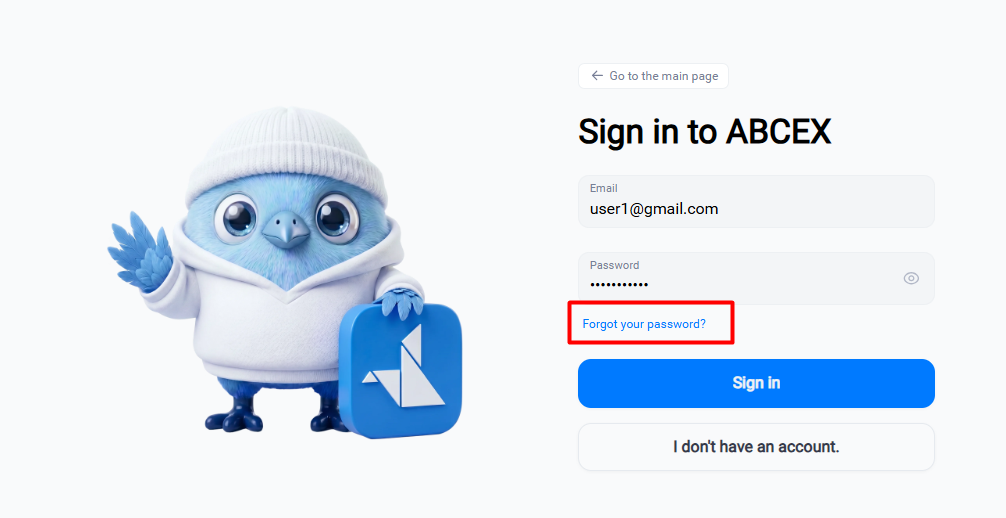
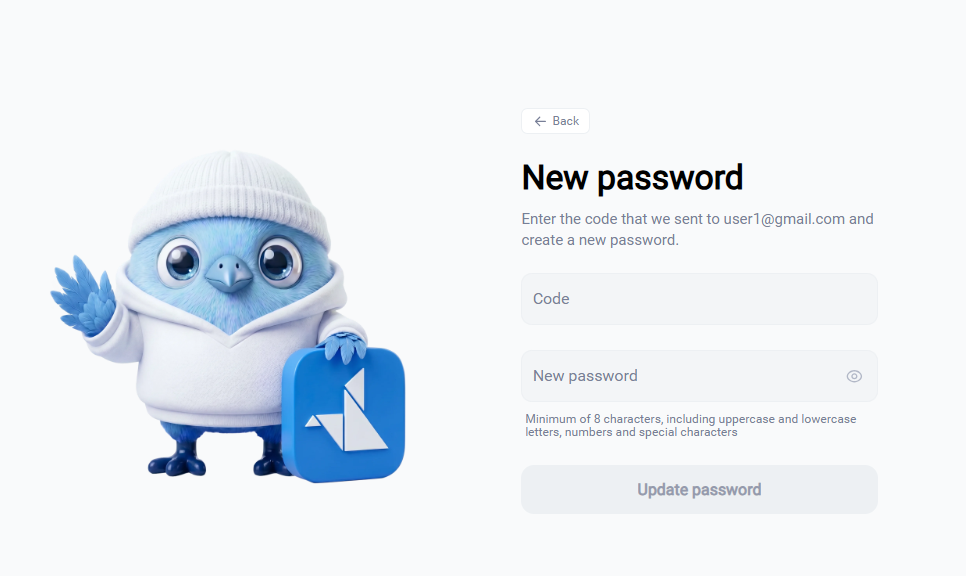
- On the login page, click “Forgot your password.”
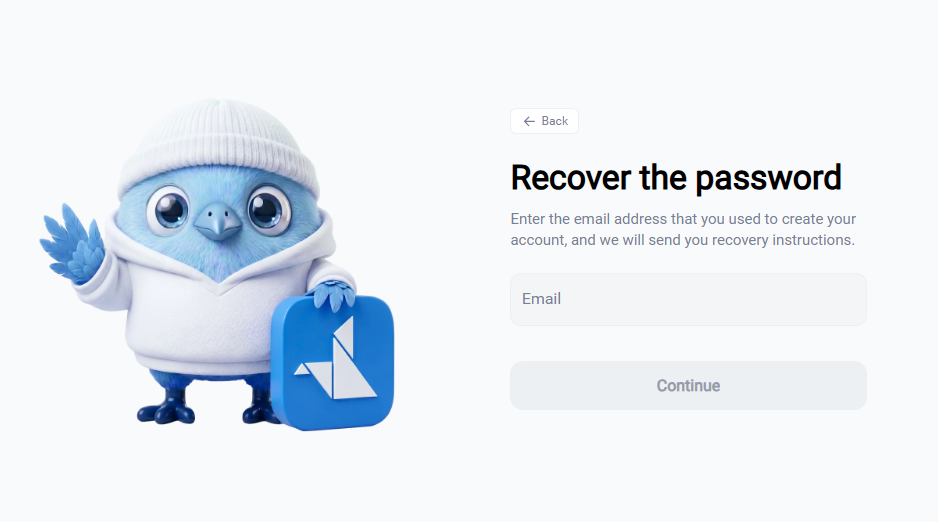
- Enter your email address and a code will be sent to it.
- Enter the code from the email or Telegram, then set a new password.
- Done - you can log in with a new password.
Frequently asked questions
24 hours from the moment of registration. If the link has expired, request a new email.
Click “Decline” — the sign-in cannot proceed without your confirmation. Then change your password and contact @ABCEX_TechSupport. Never approve a sign-in at someone else's request.