

Account Security (2FA)
A compromised account can mean lost funds. Take five minutes to configure two-factor authentication, an anti-phishing code, and session controls.
Security Settings
How to connect 2FA
- Log in to your account on the website abcex.io.
- Go to the "Profile" section.
- In the “Security” line opposite “Google Authenticator”, turn on the toggle switch.
- Install the Google Authenticator app from Google Play or App Store.
- In the app, tap "+" then on the camera and scan the QR code.
- Enter the code from Telegram or email.
- Enter the 6-digit code from Google Authenticator into the field on the ABCEX website.
- Click "Confirm".
Each time you log in, you will be required to enter a 6-digit code generated by the application.
Restoring access
If you've lost your device with Google Authenticator or forgotten your password, contact support and go through the procedure to verify account ownership. You will need to record one video file showing:
- Your passport;
- You with a passport in hand;
- ABCEX account login process;
- The process of logging into the mail associated with your account;
- Preferably, correspondence with the manager in Telegram or the “ABCEX notifications” section.
The same video must also show you sending an email to support@abcex.io, confirming that you control the email account.
The video must contain all the points in order: from the passport to confirmatory correspondence or account login. Questions - @ABCEX_TechSupport.
Signs of Phishing
- Suspicious domain - Real website: abcex.io (check current domain). Fraudsters create similar ones: abcex-trade.com, abcexchange.net. Always check the address in your browser.
- Emails without an anti-phishing code — Every official ABCEX email contains your personal anti-phishing code. If the code is missing, the email is fraudulent; do not follow its links.
- Urgent demands - “Your account will be frozen in 24 hours” is a classic technique. The exchange never urgently requires you to hand over your keys, password, or enter a 2FA code over the phone.
Exchange support will never ask for your password, 2FA code or seed phrase. If they ask, they are scammers.
Devices and Active Sessions
In your profile there is a "Devices" tab - there you can see all the devices from which you logged into your account: the current one and all others, with the time of last activity.
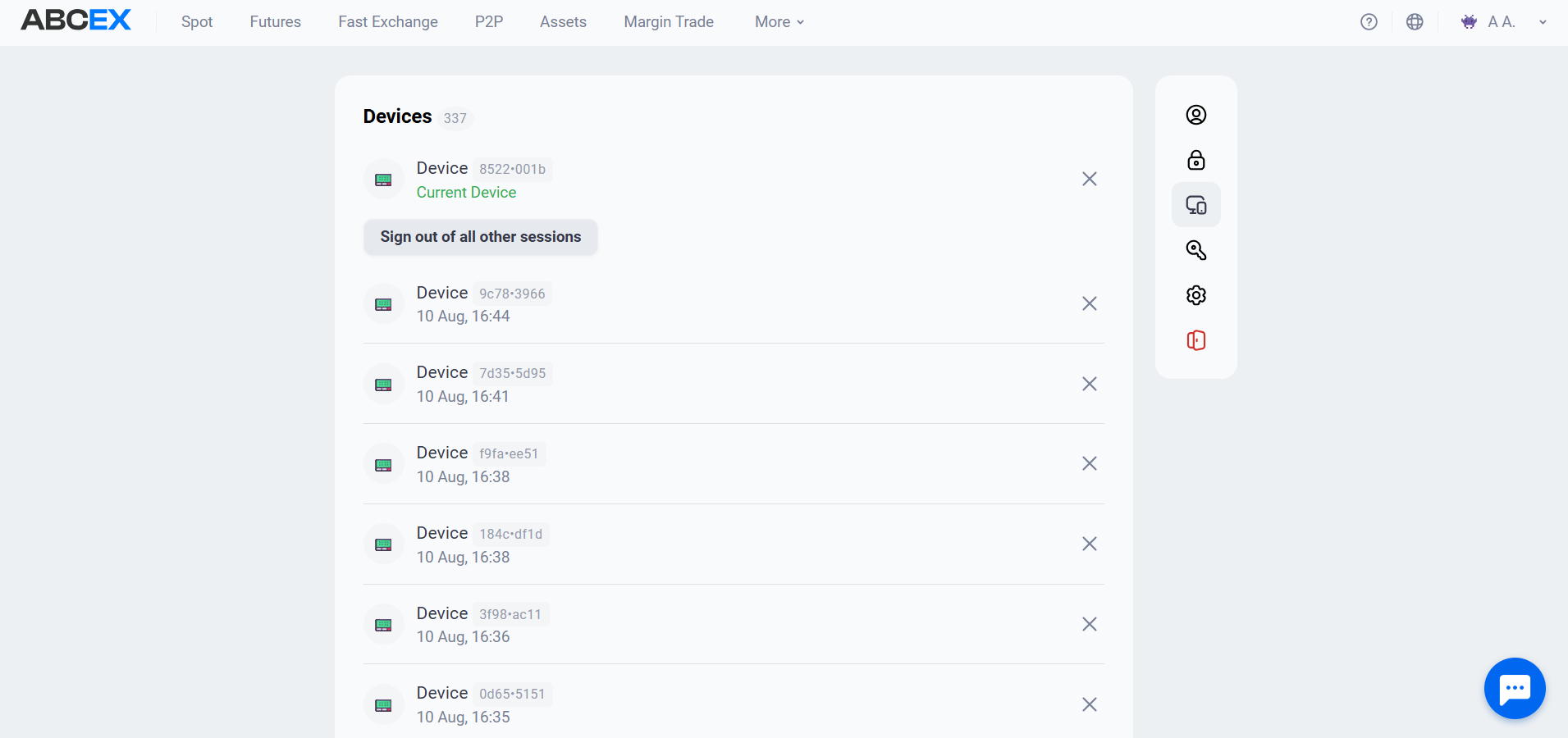
If there is a device in the list that is unfamiliar to you, click "End all other sessions", then change the password and check if 2FA is enabled.
Frequently asked questions
Profile → “Devices” tab. All active sessions are listed there with the time of last activity. Unfamiliar device - click "End all other sessions" and change the password.
No. ABCEX rules prohibit registering more than one verified account per person. Violation may result in both accounts being blocked.
Contact @ABCEX_TechSupport and complete the account ownership verification procedure: record every required item in order in a single video file (see the list above) and send it to support@abcex.io.